Members
Invite teammates to your organization, assign roles, and remove access.
Manage who belongs to your organization under Organization → Members. You'll see everyone in the organization, their role, and whether they've turned on two-factor authentication.
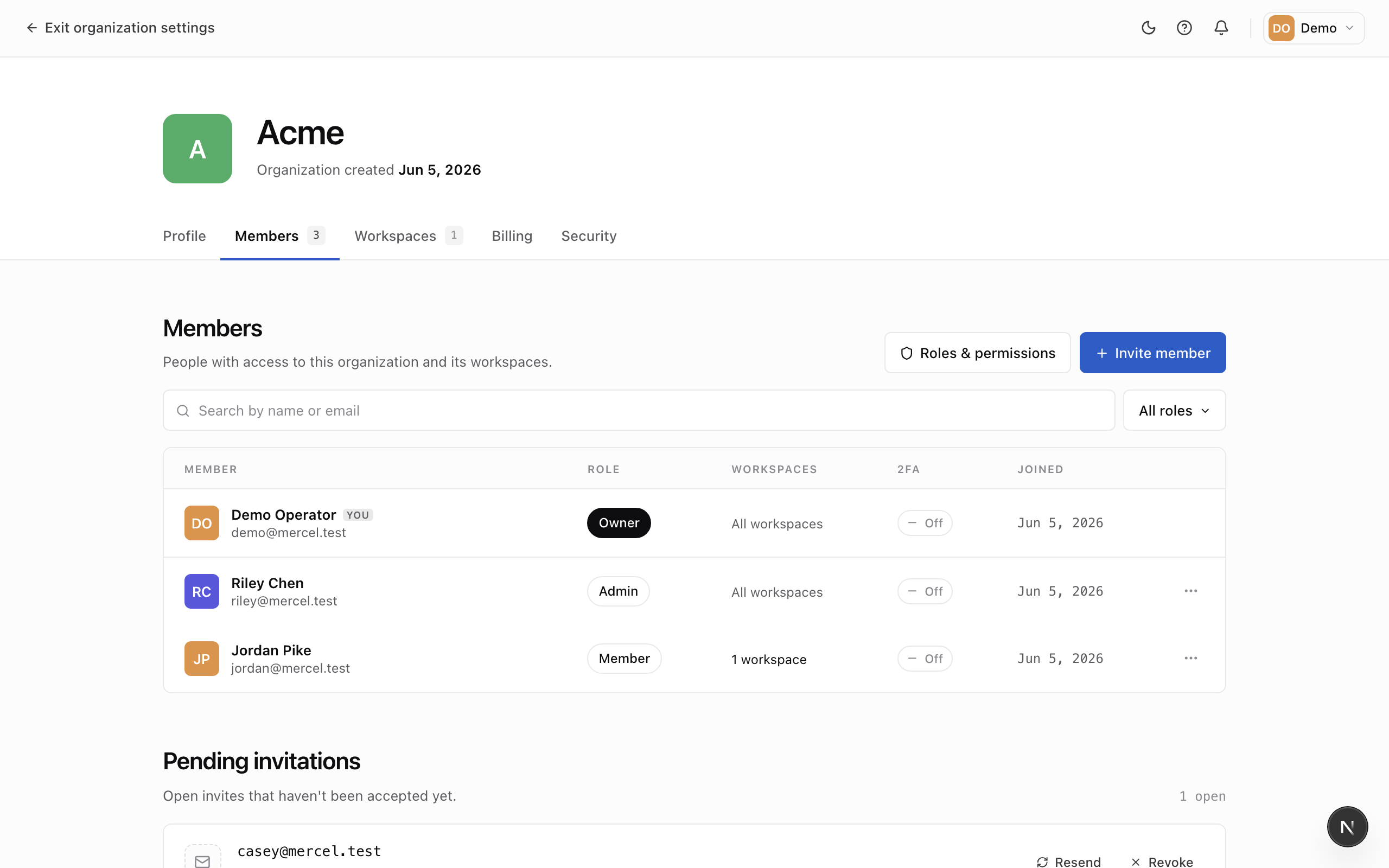
Invite a member
- Enter the teammate's email and choose a role.
- Send the invitation.
They receive an email with a link to accept. Until they do, they appear on the page as a pending invitation, which you can cancel and re-send.
Accept an invitation
When you're invited, the email links to an acceptance page showing the organization, who invited you, and the role you'll get. Click Accept to join.
- If you don't have a Mercel account yet, you'll create one first — your email is filled in for you.
- If the invitation was sent to a different address than the one you're signed in with, Mercel asks you to confirm that address before joining.
Change a role or remove a member
From the member's row, change their role or remove them from the organization. Removing a member revokes their access immediately.
Two-factor compliance
If your organization requires two-factor authentication, the Members page shows which members have enabled it and who is still within their grace period to set it up.